After completing this lesson, you’ll be able to:
In this lesson, you will:
After completing this lesson, you’ll be able to:
In this lesson, you will:
If you're taking a live Safe Software-hosted training course or using an on-demand lab for this course, we've already imported the content for this lesson into your FME Flow.
If you're completing this lesson with your own FME Flow, you must import the starting project with the content into your FME Flow.
See FME Flow Authoring: Instructions to Import the Starting Project for directions to import the project to your own FME Flow.
In your workflows, you may want to run multiple workspaces and control their order. With FME Flow Automations, you can chain your workspaces to run one after another in sequence, or you may branch the workflow to run multiple workspaces simultaneously. You may also use logic to control your workflow based on a condition. FME Flow Automations are flexible, letting you place internal and external actions in any sequential order or parallel streams, so you can adapt an Automation however you may need.
An advantage of authoring workspaces to run in sequence is compartmentalizing your workflows. Separating tasks into workspaces makes it easier to see where errors occur, and you can run other workspaces or send notifications if a workspace fails. If the inputs and outputs of the workspaces are independent, you may run the workspaces in parallel, whereby a failure in one workspace does not stop the other workspace from running.
To run actions in sequence, connect them one after the other.
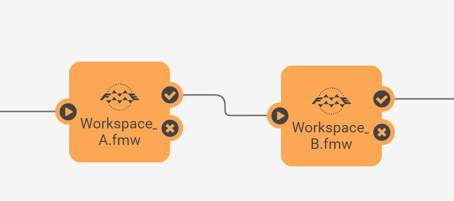
In this example, Workspace B will only run after Workspace A runs and completes successfully. If Workspace A fails, Workspace B will not run. FME Flow will only use one engine in this example because only one translation is being processed at a time.
You should run jobs in sequence if the source data for a workspace depends on the output data from another workspace, your workflow requires tasks to be completed in order, or specific tasks should only be carried out if another task completes successfully.
Connect actions to a common starting point to run them in parallel. When FME Flow passes a message to one action, it will also pass a message to the other action and process them simultaneously. The common starting point can be a trigger or another action.
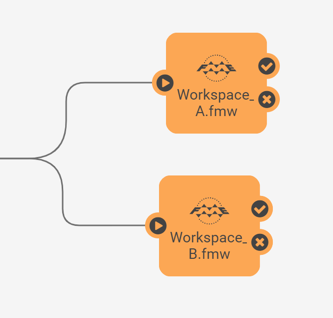
In this example, the incoming message is sent to Workspace A and Workspace B simultaneously. As long as FME Flow has multiple engines available, the workspaces will run simultaneously and independently of each other. If only one FME Flow engine is available, one workspace will run to completion, and the second will run after. There's no guarantee which workspace will run first unless you have some advanced Engine Management rules set up.
You should run actions in parallel if you have multiple tasks to complete in response to the same input, either a trigger or action, and the workspaces are independent, meaning they do not depend on datasets from one another, nor the success or failure of each other.
Conditional processing in Automations involves running workspaces or actions depending on a previous event or condition.
You can use the Filter Messages action in Automations to test simple Boolean conditions, evaluating them as true or false. The Filter action can filter on values from previous actions within the Automation.
To use the Filter on data within a workspace, you must use an Automations Writer to pass the data from the workspace to the Automation. We will cover the Automations Writer later in this course.
The Filter Messages action has success and failure ports to route messages depending on whether the condition is true or false.
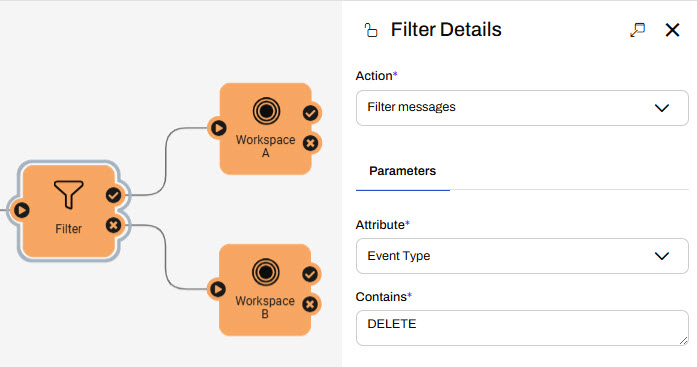
In this example, Workspace A runs if the Filter condition evaluates to true, and Workspace B runs if the condition is false. In a single run of the Automation, only Workspace A or Workspace B runs, not both.
The Filter action in Automations is somewhat limited in that it only supports simple conditions. You can use a Run a Workspace action with an Automations Writer to route data to various ports for more advanced filtering. You'll learn more about the Automations Writer later in this course.
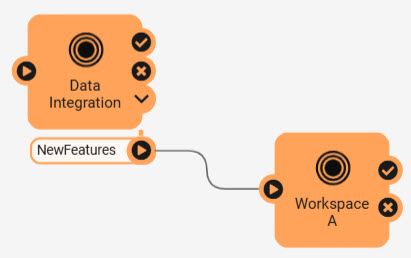
You may also wish to carry out certain translations in the unfortunate case that a job fails. To run a workspace in case of a workspace failure, you can attach Run a Workspace actions to the previous action failure port.
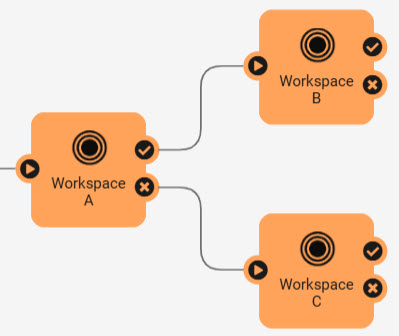
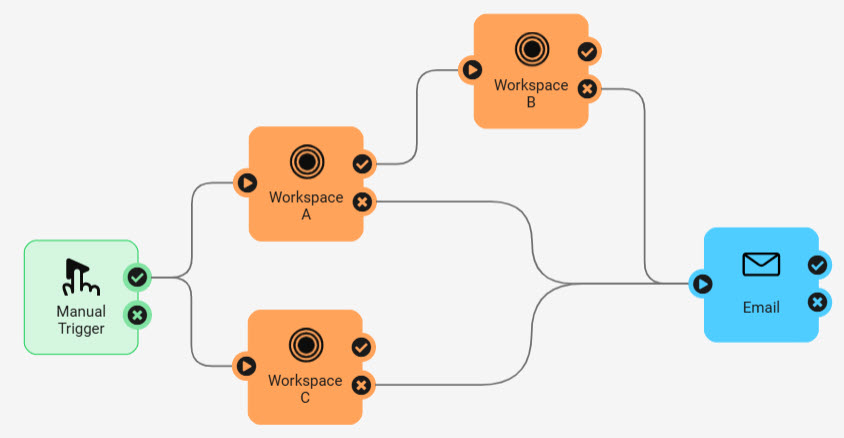
In this example, Workspace B runs if Workspace A succeeds, while Workspace C runs if Workspace A fails.

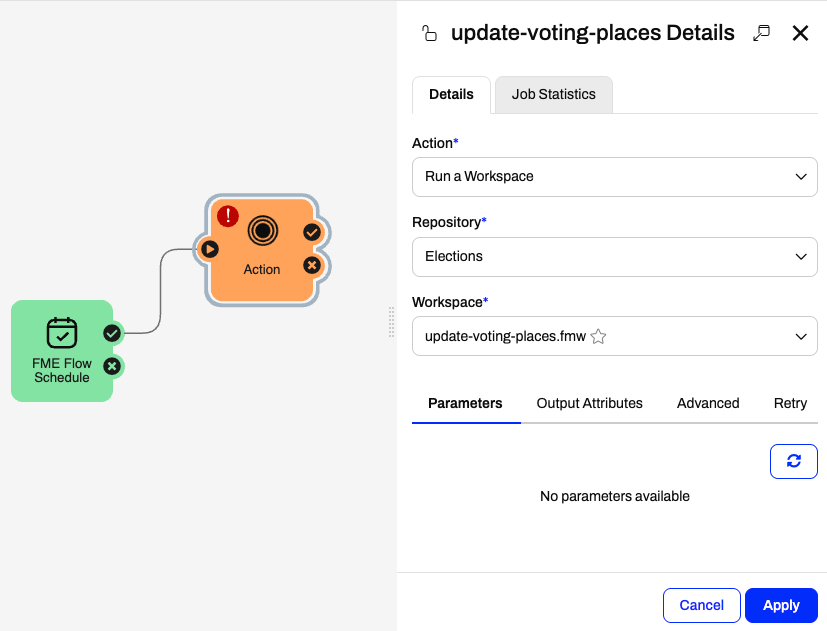
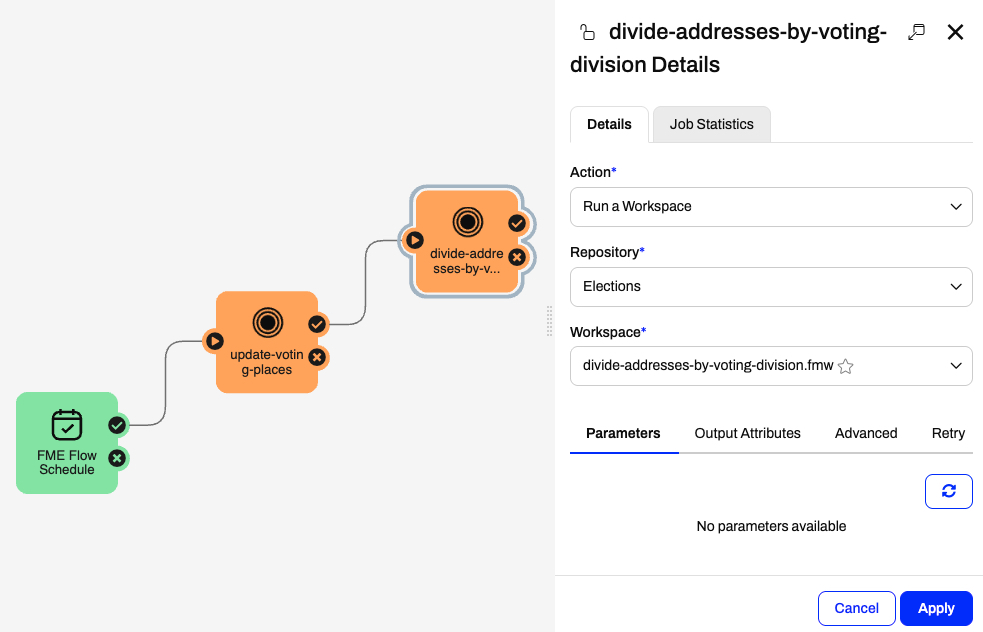
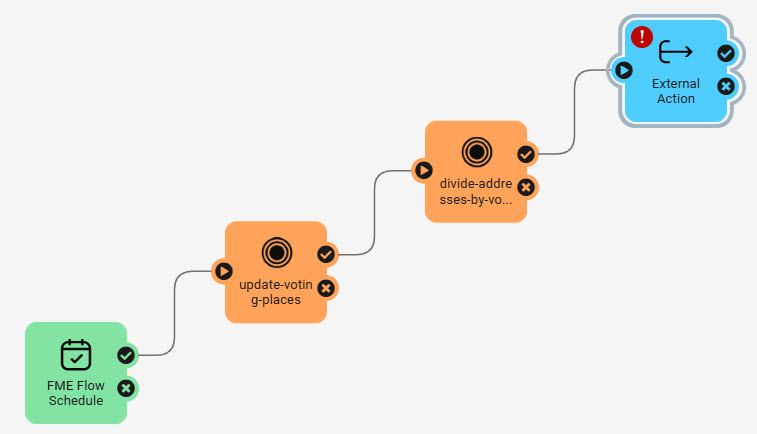
Sven, a planning analyst, is building an automation to update election voting location information. He has two workspaces: one that updates a SpatiaLite database with electoral divisions and voting places, and another that assigns voting division IDs to addresses. He runs these workspaces consecutively, in order, because the second workspace relies on data updates from the first.
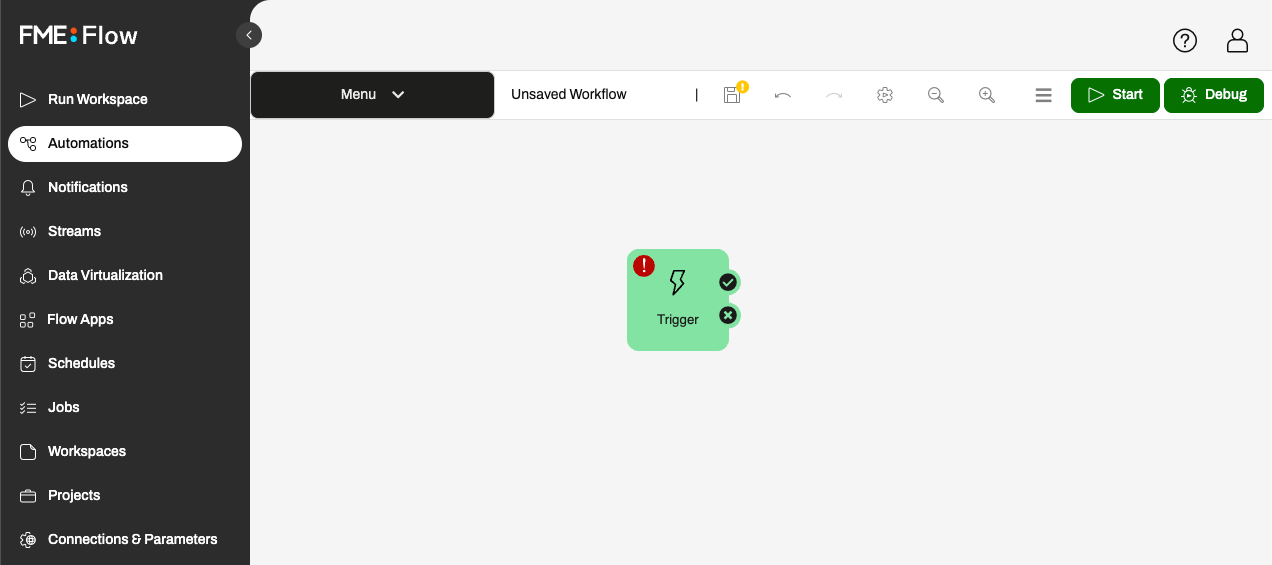
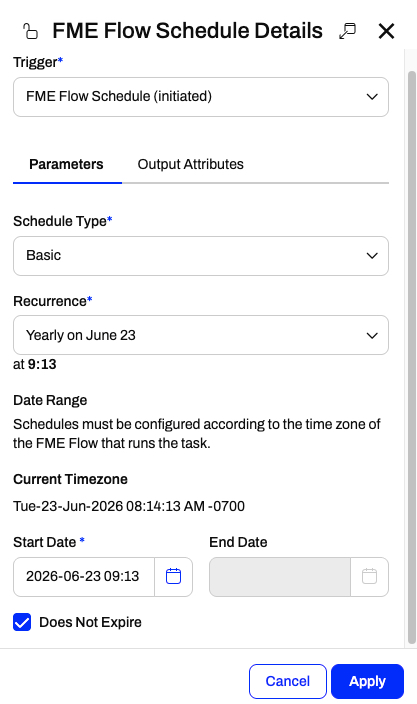
Since election data does not change often and elections do not occur frequently, Sven usually forgets to update the database manually. So, Sven will create an automation with a schedule trigger to run his workspaces in sequence and update the data yearly. The schedule trigger also allows him to manually trigger the automation if he needs to update data for a specific event.
In this exercise, you will:
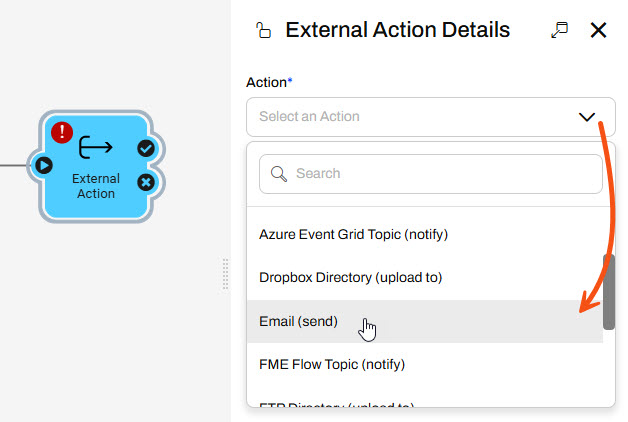
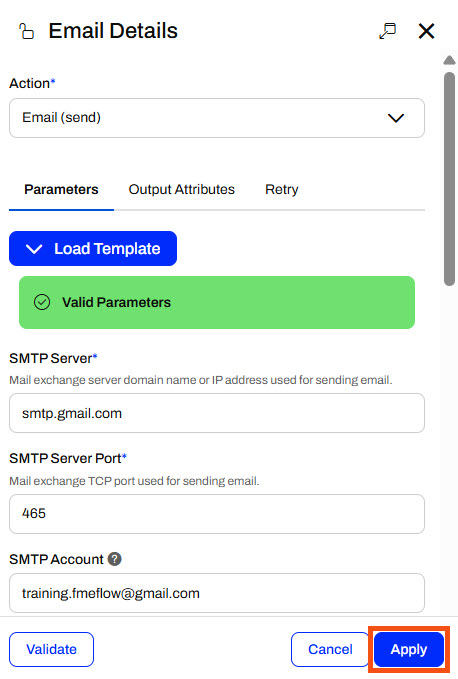
You will configure the action to use a Gmail account for the SMTP credentials.
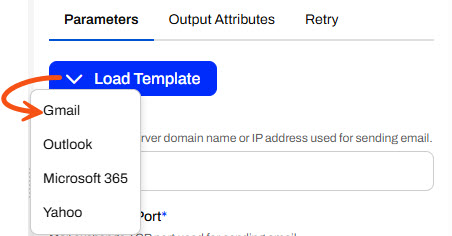
This Gmail account password changes regularly. Please only use it for FME training purposes, or configure your SMTP account for the Email action.
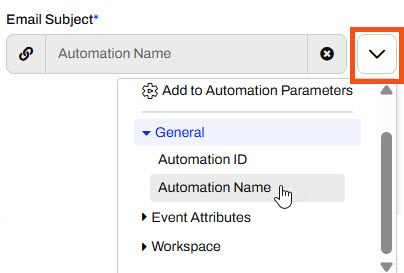
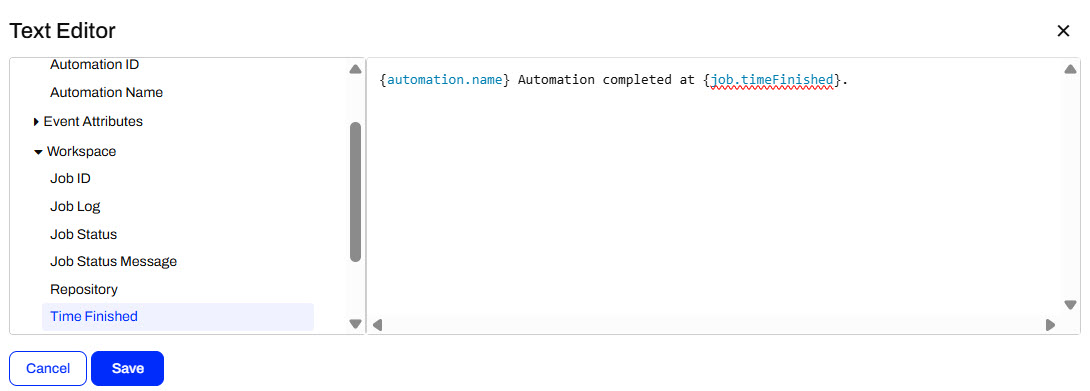
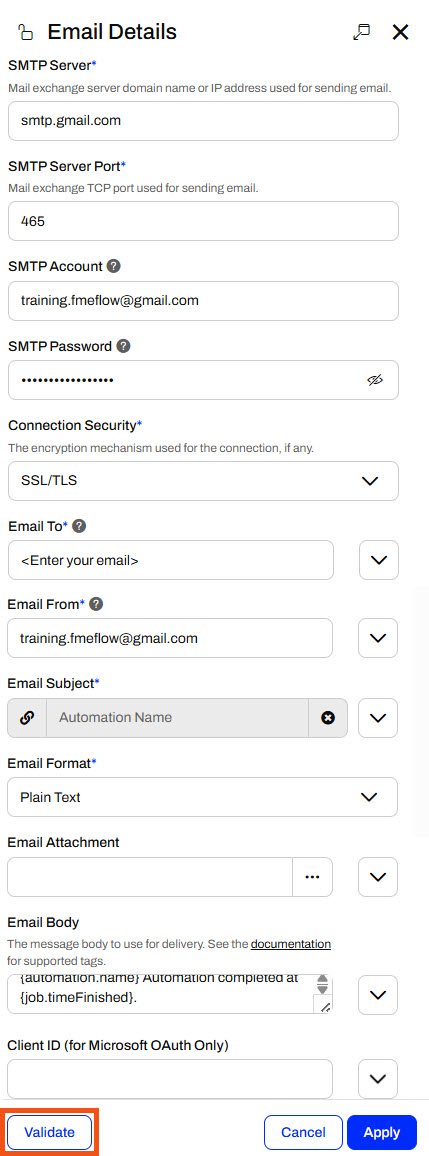
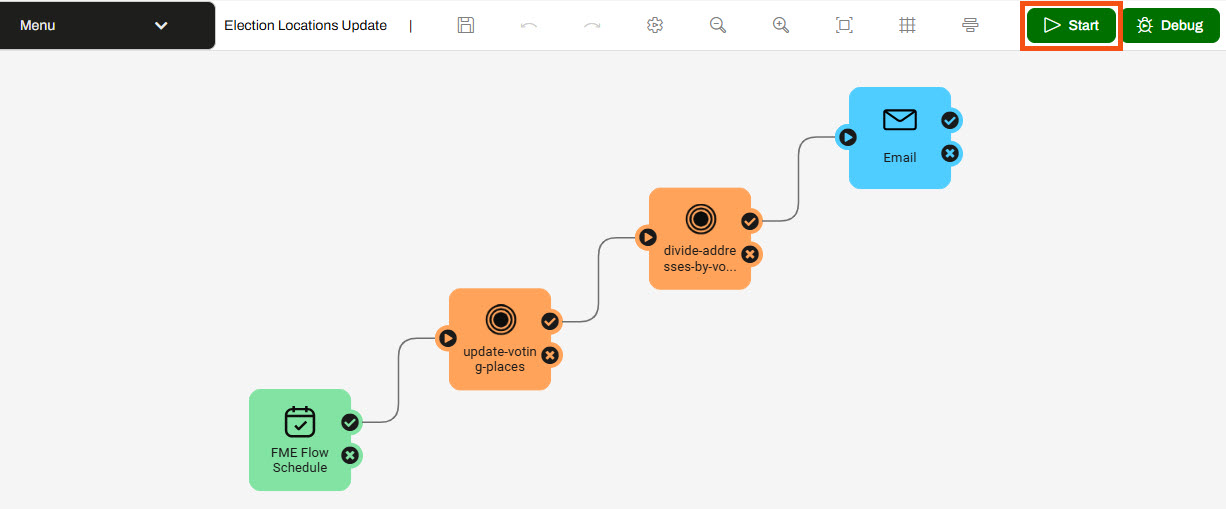
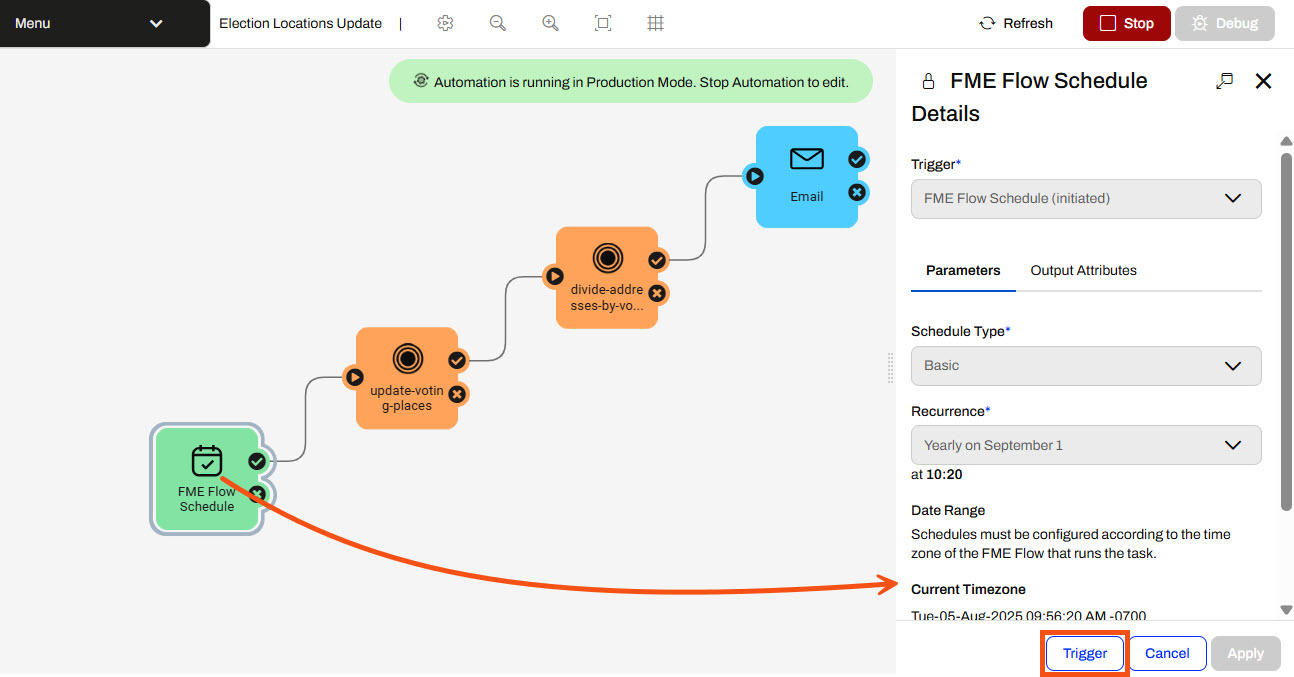
The automation will run only on the scheduled date and time, so you will trigger it manually to test it.
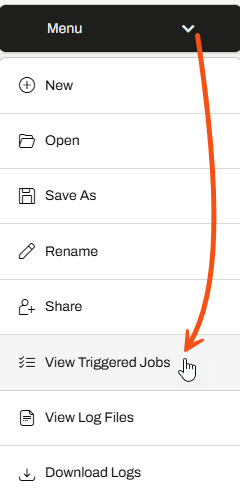
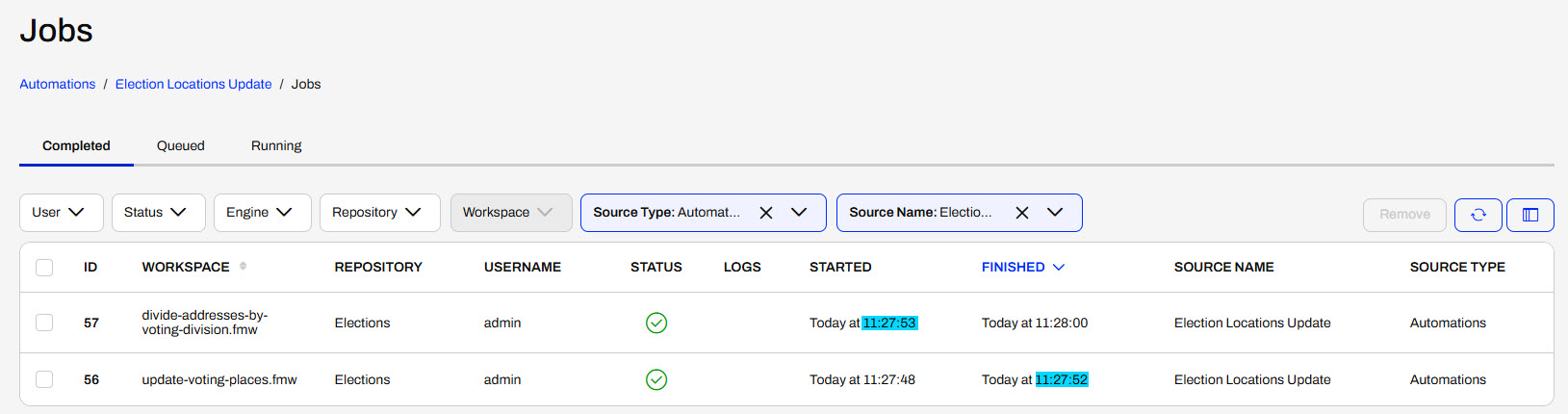
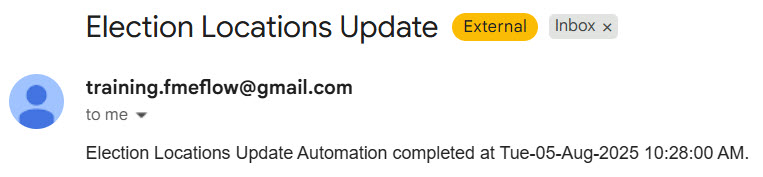
You've now chained multiple jobs in an automation, ensuring one job does not begin to process until after another job completes. You also sent an email notification to alert that the automation has been processed. This will save Sven time and ensure the election voting data is updated annually without any manual effort.
If you're taking a live Safe Software-hosted training course or using an on-demand lab for this course, we've already imported the content for this lesson into your FME Flow.
If you're completing this lesson with your own FME Flow, you must import the starting project with the content into your FME Flow.
See FME Flow Authoring: Instructions to Import the Starting Project for directions to import the project to your own FME Flow.
In your workflows, you may want to run multiple workspaces and control their order. With FME Flow Automations, you can chain your workspaces to run one after another in sequence, or you may branch the workflow to run multiple workspaces simultaneously. You may also use logic to control your workflow based on a condition. FME Flow Automations are flexible, letting you place internal and external actions in any sequential order or parallel streams, so you can adapt an Automation however you may need.
An advantage of authoring workspaces to run in sequence is compartmentalizing your workflows. Separating tasks into workspaces makes it easier to see where errors occur, and you can run other workspaces or send notifications if a workspace fails. If the inputs and outputs of the workspaces are independent, you may run the workspaces in parallel, whereby a failure in one workspace does not stop the other workspace from running.
To run actions in sequence, connect them one after the other.
In this example, Workspace B will only run after Workspace A runs and completes successfully. If Workspace A fails, Workspace B will not run. FME Flow will only use one engine in this example because only one translation is being processed at a time.
You should run jobs in sequence if the source data for a workspace depends on the output data from another workspace, your workflow requires tasks to be completed in order, or specific tasks should only be carried out if another task completes successfully.
Connect actions to a common starting point to run them in parallel. When FME Flow passes a message to one action, it will also pass a message to the other action and process them simultaneously. The common starting point can be a trigger or another action.
In this example, the incoming message is sent to Workspace A and Workspace B simultaneously. As long as FME Flow has multiple engines available, the workspaces will run simultaneously and independently of each other. If only one FME Flow engine is available, one workspace will run to completion, and the second will run after. There's no guarantee which workspace will run first unless you have some advanced Engine Management rules set up.
You should run actions in parallel if you have multiple tasks to complete in response to the same input, either a trigger or action, and the workspaces are independent, meaning they do not depend on datasets from one another, nor the success or failure of each other.
Conditional processing in Automations involves running workspaces or actions depending on a previous event or condition.
You can use the Filter Messages action in Automations to test simple Boolean conditions, evaluating them as true or false. The Filter action can filter on values from previous actions within the Automation.
To use the Filter on data within a workspace, you must use an Automations Writer to pass the data from the workspace to the Automation. We will cover the Automations Writer later in this course.
The Filter Messages action has success and failure ports to route messages depending on whether the condition is true or false.
In this example, Workspace A runs if the Filter condition evaluates to true, and Workspace B runs if the condition is false. In a single run of the Automation, only Workspace A or Workspace B runs, not both.
The Filter action in Automations is somewhat limited in that it only supports simple conditions. You can use a Run a Workspace action with an Automations Writer to route data to various ports for more advanced filtering. You'll learn more about the Automations Writer later in this course.
You may also wish to carry out certain translations in the unfortunate case that a job fails. To run a workspace in case of a workspace failure, you can attach Run a Workspace actions to the previous action failure port.
In this example, Workspace B runs if Workspace A succeeds, while Workspace C runs if Workspace A fails.
Sven, a planning analyst, is building an automation to update election voting location information. He has two workspaces: one that updates a SpatiaLite database with electoral divisions and voting places, and another that assigns voting division IDs to addresses. He runs these workspaces consecutively, in order, because the second workspace relies on data updates from the first.
Since election data does not change often and elections do not occur frequently, Sven usually forgets to update the database manually. So, Sven will create an automation with a schedule trigger to run his workspaces in sequence and update the data yearly. The schedule trigger also allows him to manually trigger the automation if he needs to update data for a specific event.
In this exercise, you will:
You will configure the action to use a Gmail account for the SMTP credentials.
This Gmail account password changes regularly. Please only use it for FME training purposes, or configure your SMTP account for the Email action.
The automation will run only on the scheduled date and time, so you will trigger it manually to test it.
You've now chained multiple jobs in an automation, ensuring one job does not begin to process until after another job completes. You also sent an email notification to alert that the automation has been processed. This will save Sven time and ensure the election voting data is updated annually without any manual effort.
